
TL;DR:
- Remote teams rely on integrated cloud tools for communication, project management, storage, and visual collaboration. Effective processes, secure data control, and proper tool connections prevent inefficiencies and security risks in remote work.
Cloud tools for remote teams are digital platforms that unify communication, task management, document handling, and creative collaboration across distributed workforces. The industry term for this category is cloud collaboration software, though "cloud tools for remote teams" accurately describes how managers at small to medium-sized businesses (SMBs) search for and evaluate these platforms. Most high-performing remote teams integrate at least 3–4 specialized tools covering four core operational needs: real-time communication, project management, cloud storage and documentation, and visual collaboration. Choosing the right mix, and connecting those tools properly, determines whether your distributed team operates with clarity or constant friction.
What are the main categories of cloud tools remote teams need?
Remote teams need four distinct tool categories, and each one solves a different problem. Using only one or two categories leaves critical gaps that slow down work and create confusion.
Real-time communication tools
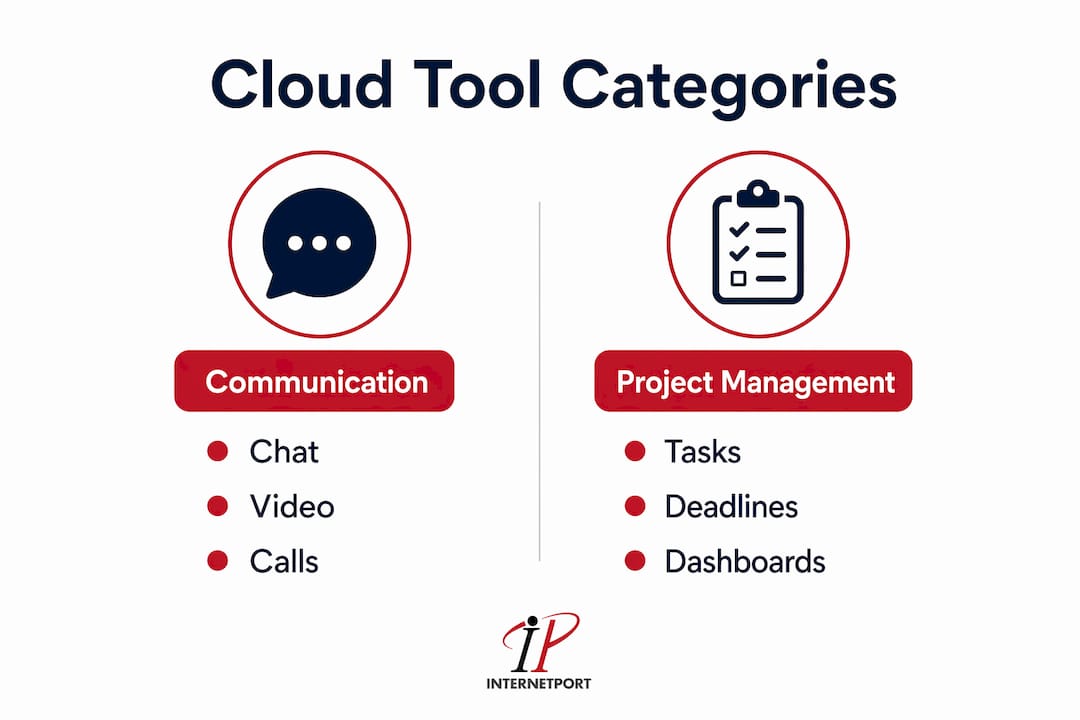
Real-time communication platforms replace the spontaneous conversations that happen naturally in an office. They support instant messaging, video calls, voice channels, and threaded discussions. The best platforms let you organize conversations by project, department, or topic so that important updates do not get buried. Without a dedicated communication tool, remote teams default to email, which creates delays and loses context fast.

Project management tools
Cloud-based project management tools centralize tasks, deadlines, ownership, and progress tracking in one place. Every team member sees what needs to happen, who owns it, and when it is due. These platforms remove the need for status meetings because the information is always visible. Professional plans typically cost between $10 and $30 per user per month, varying by automation depth and security features.
Cloud storage and documentation tools
Cloud-native file tools enable real-time multi-user editing without version conflicts. That matters enormously for remote teams because traditional file sharing (emailing attachments, for example) creates duplicate versions and wastes hours reconciling changes. A good documentation platform also serves as your team's institutional memory, storing processes, decisions, and reference material in a searchable, accessible format.
Visual and creative collaboration tools
Visual collaboration platforms give distributed teams a shared canvas for brainstorming, diagramming, and design feedback. These tools replicate the whiteboard experience that remote teams lose when they leave the office. They work best when connected to your project management and communication tools so that ideas move directly into tasks.
Pro Tip: Before selecting any tool, map your team's actual workflow for one week. Note where information gets lost or duplicated. Those friction points reveal exactly which tool category you are missing.
How do cloud-based project management tools enhance remote team productivity?
Cloud-based project management tools remove location as a barrier to work. A team member in Stockholm and a colleague in Austin can update the same task board at 2:00 AM or 2:00 PM without any coordination overhead. That 24/7 accessibility is the foundational advantage of cloud project management over on-premise or spreadsheet-based tracking.
Role-based access and security
Role-based access control (RBAC) limits what each team member can see and edit based on their job function. A contractor sees only the project they are working on. A department head sees all projects in their area. An executive sees the full portfolio dashboard. This structure reduces security risk and keeps team members focused on relevant work rather than distracted by unrelated projects.
Automation and real-time updates
Automation features in cloud project tools handle repetitive tasks like status updates, deadline reminders, and task assignments triggered by specific events. When a task moves to "In Review," the platform can automatically notify the reviewer and log the timestamp. That consistency removes the human error that comes with manual tracking.
Real-time task updates also replace the need for daily check-in meetings. Team members update their own tasks as work progresses, and managers see the current state of every project without asking anyone. That shift alone saves hours per week across a distributed team.
Dashboards and leadership oversight
Real-time dashboards give team leaders insight into resource allocation, project health, and upcoming bottlenecks without generating manual reports. You can see which team members are overloaded, which projects are at risk, and where deadlines cluster. That visibility supports better decisions faster.
Pro Tip: Set up your project management dashboards before your team starts using the platform. A well-configured dashboard on day one shows the team that the tool is serious infrastructure, not an experiment.
The benefits of cloud project management compound over time. Scalable platforms grow with your team, minimizing onboarding friction and avoiding costly migrations as your organization expands. Choosing a platform with room to grow is as important as choosing one that fits your current needs.
What security and compliance considerations matter when selecting cloud tools?
Security is where many SMB managers make their most expensive mistakes. The choice between public SaaS and self-hosted cloud options has direct consequences for compliance, data control, and long-term risk.
Public SaaS versus self-hosted cloud
Many SMBs overlook the difference between public SaaS tools and self-hosted or private cloud deployments. Public SaaS tools are fast to deploy and require no infrastructure management, but your data lives on the vendor's servers, often in data centers outside your country or regulatory jurisdiction. Self-hosted solutions give you full data control and geographic sovereignty, but they require dedicated IT management to maintain.
For teams in regulated industries (healthcare, finance, legal services), the distinction is not optional. Self-hosted deployments provide geographic control that is critical for meeting EU data residency requirements and sector-specific compliance standards. Choosing a public SaaS tool without checking where data is stored can create compliance violations that are expensive to fix retroactively.
| Consideration | Public SaaS | Self-hosted / Private cloud |
|---|---|---|
| Deployment speed | Fast, minimal setup | Requires IT configuration |
| Data location control | Vendor-determined | Full control |
| Compliance suitability | Varies by vendor | High, especially for EU regulations |
| Maintenance burden | Vendor-managed | Internal IT responsibility |
| Cost structure | Per-user subscription | Infrastructure plus management |
Vendor lock-in and data exportability
Tradeoffs between SaaS convenience and vendor lock-in make interoperability and data exportability critical criteria in tool selection. Before committing to any platform, confirm that you can export all your data in a standard format. If the vendor shuts down or raises prices significantly, you need a clean exit path. Platforms that use proprietary formats for task data, documents, or integrations create long-term dependency that limits your options.
Pro Tip: Ask every vendor two questions before signing: "Where are our data stored geographically?" and "How do we export everything if we leave?" The answers reveal more about a vendor's values than any sales pitch.
For teams that need the security benefits of private infrastructure without building it from scratch, private cloud advantages are worth understanding before making a final decision.
How do you integrate multiple cloud tools without causing tool fatigue?
Tool fatigue arises when teams adopt many disconnected applications without integration, fragmenting workflows and creating inefficiencies. The symptom is familiar: team members spend more time managing tools than doing actual work. The fix is not fewer tools. It is better-connected tools.
Here is a practical framework for building a connected cloud tool ecosystem:
- Audit what you already use. List every tool your team touches in a given week. Identify which ones overlap in function and which ones have no connection to anything else.
- Identify your central hub. Choose one platform (typically your project management tool) as the system of record. All other tools should feed information into or out of this hub.
- Map your API connections. Cloud integrations via APIs allow data to flow automatically between tools. A message in your communication platform can create a task. A completed task can trigger a notification. Map these connections before you build them.
- Eliminate redundant tools. If two tools do the same job and only one connects to your hub, cut the one that does not integrate. Redundancy creates confusion about where the authoritative version of information lives.
- Define where each type of information lives. Decisions go in the documentation tool. Tasks go in the project management tool. Quick questions go in the communication tool. Without these rules, team members store information wherever is convenient, and it becomes impossible to find later.
Effective cloud integration avoids tool fatigue by centralizing workflows and enabling automatic data flow. The goal is a system where information enters once and appears everywhere it is needed, without anyone manually copying it. SaaS platforms that automate growth-related tasks demonstrate how automation principles apply across cloud software categories, not just project management.
When evaluating new tools, prioritize platforms with documented API libraries and native integrations with the tools you already use. A powerful tool that cannot connect to your existing stack creates more problems than it solves.
What steps should remote team leaders take when migrating to cloud tools?
Migration to cloud collaboration tools fails most often because of people, not technology. The technical setup is straightforward. The cultural and process changes require deliberate management.
- Define your digital processes before deployment. Without standardized workflows, cloud tools accelerate chaos rather than productivity. Write down how tasks get created, assigned, updated, and closed before anyone logs into the new platform.
- Configure role-based access before your first user logs in. Pre-configuring RBAC reduces security risks and prevents the messy permission cleanup that happens when access is assigned ad hoc.
- Run a phased rollout. Start with one team or one project type. Collect feedback, fix friction points, and then expand. A full-company launch on day one creates too many simultaneous problems to address effectively.
- Train for the workflow, not the software. Most platforms have good documentation. What team members actually need is training on how your team specifically uses the tool, including naming conventions, folder structures, and task update expectations.
- Monitor adoption with data, not assumptions. Most cloud platforms provide usage analytics. Check them weekly during the first 90 days. Low adoption in a specific team usually signals a training gap or a process that does not fit the tool.
Pro Tip: Assign one "tool champion" per team during rollout. This person is not IT support. They are the go-to colleague who knows the team's specific workflows and can answer questions in context.
For teams evaluating whether cloud or on-premise infrastructure fits their needs, the cloud versus on-premise decision guide provides a practical framework for SMBs working through that choice.
Key Takeaways
Effective cloud collaboration requires integrating four tool categories, securing your data infrastructure, and defining team processes before deploying any software.
| Point | Details |
|---|---|
| Four core tool categories | Remote teams need communication, project management, storage, and visual collaboration tools working together. |
| RBAC before deployment | Configure role-based access controls before any team member logs in to minimize security exposure. |
| SaaS versus self-hosted | Regulated industries must verify data residency and consider self-hosted options for compliance control. |
| Integration over accumulation | Connect tools via APIs and designate one platform as the system of record to prevent tool fatigue. |
| Process before platform | Define how tasks, decisions, and files are handled before selecting or deploying any cloud tool. |
Why the tools are never the real problem
I have watched teams buy every category of cloud collaboration software, configure it carefully, and still struggle six months later. The pattern is consistent: the tools work fine. The team does not know how to use them together.
The uncomfortable truth is that most remote collaboration failures are process failures wearing a technology costume. A team that communicated poorly in the office will communicate poorly on a video call platform. A team that missed deadlines with spreadsheets will miss them on a project management tool. The software surfaces the dysfunction more visibly, which managers sometimes mistake for the software causing the problem.
What actually works is defining the "how" before selecting the "what." Decide how your team communicates urgent issues versus non-urgent updates. Decide where decisions get documented. Decide who has authority to close a task. Then find tools that support those decisions. That sequence, process first and tools second, is the one most managers reverse.
Security deserves the same intentional approach. I have seen SMBs sign up for convenient SaaS tools without checking where their data is stored, only to discover compliance problems when a client or auditor asks. The question of whether your data lives in a Swedish data center or a server farm in an unknown jurisdiction is not a technical detail. It is a business risk decision.
The best remote teams I have observed treat their cloud tool stack the way a good chef treats a kitchen. Every tool has a specific job. Everything has a place. Nothing is added without a clear reason. That discipline, more than any specific platform choice, is what separates teams that thrive remotely from teams that just survive.
— Peter
How Internetport supports remote teams with reliable cloud infrastructure
Remote teams need more than collaboration software. They need the underlying infrastructure to be fast, secure, and compliant with data residency requirements.
Internetport provides web hosting and dedicated server solutions from data centers in Sweden and internationally, giving SMBs the geographic data control that public SaaS tools cannot guarantee. PCI DSS compliance, private networking options, and role-based access support make Internetport a practical choice for teams that need their infrastructure to meet the same security standards as their collaboration tools. For teams ready to move beyond shared SaaS infrastructure, Internetport's cloud VPS options offer flexible, scalable environments that grow with your team.
FAQ
What are cloud tools for remote teams?
Cloud tools for remote teams are software platforms that enable distributed employees to communicate, manage tasks, share files, and collaborate visually through internet-connected services. High-performing remote teams typically use at least 3–4 specialized tools across these categories.
How much do cloud project management tools cost?
Professional cloud project management plans typically cost between $10 and $30 per user per month, with pricing varying based on automation depth, security features, and the number of integrations available.
What is the difference between public SaaS and self-hosted cloud tools?
Public SaaS tools are vendor-managed and fast to deploy, but data is stored on the vendor's servers. Self-hosted solutions give organizations full data sovereignty and compliance control, but require internal IT management to maintain.
How do you prevent tool fatigue in a remote team?
Tool fatigue is prevented by designating one platform as the central system of record, connecting other tools via APIs, and eliminating any application that duplicates a function already covered by an integrated tool.
Why does data residency matter when choosing cloud tools?
Data residency determines which legal jurisdiction governs your stored information. Teams in regulated industries must confirm that their cloud tools store data within compliant geographic boundaries to meet requirements like EU data protection regulations.