

TL;DR:
- VPS offers dedicated resources and better security control than shared hosting.
- Proper setup includes selecting specifications, securing SSH, configuring firewalls, and regular updates.
- Ongoing management with backups and monitoring ensures reliability and quick recovery.
Shared hosting feels fine until it doesn't. One traffic spike, one noisy neighbor hogging server resources, or one security breach and your business operations grind to a halt. For small and medium-sized businesses managing critical applications, customer data, or e-commerce storefronts, that's an unacceptable risk. A virtual private server (VPS) gives you dedicated resources, root-level control, and isolation from other users on the same physical machine. This guide walks you through every stage of a successful VPS setup: from pre-launch planning and provider selection to hardening, backups, and long-term management. By the end, you'll have a server that's ready for real business workloads.
Table of Contents
- What you need before setting up your VPS
- VPS setup: Step-by-step instructions
- Securing your VPS: Hardening essentials
- Ongoing management: Backups, monitoring, and troubleshooting
- A fresh perspective: What most guides miss about running a business VPS
- Get started with robust cloud solutions
- Frequently asked questions
Key Takeaways
| Point | Details |
|---|---|
| Get prerequisites right | Choose a VPS provider based on business needs, system specs, price, and reliability to minimize issues at launch. |
| Follow best setup practices | Set up your VPS using proven steps, including non-root user creation, essential updates, and network checks. |
| Prioritize security | Implement security basics—SSH keys, firewalls, and updates—to block 99 percent of automated attacks from day one. |
| Invest in ongoing care | Schedule automated backups and monitoring to maintain uptime and support growth as your business evolves. |
What you need before setting up your VPS
With your goals clarified, it's crucial to understand what's required before launching your VPS. Skipping this step is the most common reason businesses end up migrating servers six months later when they've outgrown an underpowered plan.
Start with your technical requirements. Most business web applications need at minimum 2 vCPUs, 2 to 4 GB of RAM, and SSD or NVMe storage for fast disk I/O. Bandwidth matters too. Media-heavy sites and e-commerce platforms can chew through terabytes per month, so pick a plan with room to grow. Understanding VPS hosting benefits before committing will help you match the plan to your actual workload rather than guessing.
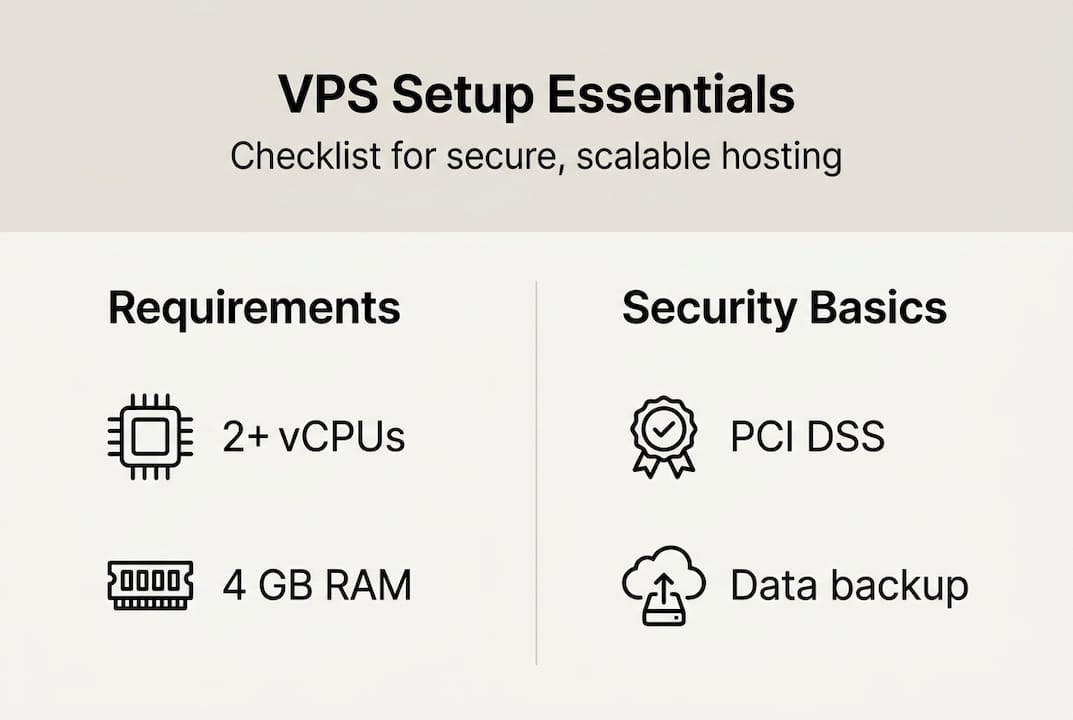
Assess your compliance and business needs. If you handle payment data, you need a host that meets PCI DSS standards. If you operate in the EU, GDPR data residency requirements affect which data center regions you can use. List every application you plan to run and its resource footprint before touching a provisioning panel.
When comparing providers, raw specs vary significantly. Disk read/write speeds show Vultr Intel HF leading at 447 MB/s, while Hetzner CX22 delivers outstanding value for budget-conscious SMBs. Review your full web hosting checklist so nothing gets missed.
| Provider | vCPU | RAM | Storage | Price/mo |
|---|---|---|---|---|
| Vultr Intel HF | 1 | 1 GB | 25 GB NVMe | ~$6.00 |
| Hetzner CX22 | 2 | 4 GB | 40 GB NVMe | ~$3.79 |
| DigitalOcean Basic | 1 | 1 GB | 25 GB SSD | ~$6.00 |
| Internetport VPS | 2+ | 4 GB+ | SSD/NVMe | Varies |
Before provisioning, confirm you have:
- A registered domain name pointed to your new server IP
- SSH client installed (Terminal on macOS/Linux, PuTTY or Windows Terminal on Windows)
- Required software list (web server, database, language runtime)
- Admin contact and billing credentials for your provider account
- Backup destination configured (offsite storage or cloud bucket)
Pro Tip: Choose a provider with data centers in regions closest to your primary user base. Latency below 50ms makes a noticeable difference for interactive applications and checkout flows.
VPS setup: Step-by-step instructions
Once you've selected a provider and ticked all the boxes, it's time to roll up your sleeves and set up the VPS itself. The process below applies to any Linux-based VPS, with Ubuntu 22.04 LTS as the recommended OS for most SMB workloads.
Follow these steps in order:
- Log in to your provider control panel and provision a new VPS instance. Select your OS, region, and plan. Save the root password or upload your SSH public key during provisioning.
- Connect via SSH using "ssh root@your-server-ip`. Confirm the server fingerprint before proceeding.
- Run a full system update immediately:
apt update && apt upgrade -y. This closes known vulnerabilities before you do anything else. - Create a non-root user with sudo privileges:
adduser yourusernamefollowed byusermod -aG sudo yourusername. Never operate day-to-day as root. - Set your hostname with
hostnamectl set-hostname yourservernameand update/etc/hoststo match. - Configure networking. Confirm your static IP assignment and set up DNS records for your domain.
- Enable swap if RAM is below 4 GB. A 2 GB swap file prevents out-of-memory (OOM) crashes under load.
- Configure your firewall. Install UFW, allow SSH (port 22), HTTP (80), and HTTPS (443), then enable it.
- Test firewall rules in a new session before closing your existing connection. Firewall testing best practices include changing the SSH port and testing access without dropping your live session, which prevents lockouts.
- Install your application stack (NGINX or Apache, your database, and runtime environment).
| Step | Action | Why it matters |
|---|---|---|
| 1 | Provision VPS | Baseline setup |
| 3 | System update | Close known vulnerabilities |
| 4 | Non-root user | Reduce attack surface |
| 7 | Swap file | Prevent OOM crashes |
| 9 | Firewall test | Avoid self-lockout |
Pro Tip: Change your default SSH port from 22 to a high-numbered port (e.g., 2222). This alone cuts automated login attempts by over 90% without any added complexity. The VPS hosting advantages of this kind of flexibility simply aren't available on shared plans.
Securing your VPS: Hardening essentials
Even a perfectly functioning VPS is at risk without these security steps, which are foundational for business trust. Think of hardening not as a one-time task but as a baseline you establish once and automate going forward.
The non-negotiables for every business VPS:
- Disable root SSH login. Edit
/etc/ssh/sshd_configand setPermitRootLogin no. - Enforce SSH key authentication only. Set
PasswordAuthentication noin the same file. Passwords are brute-forceable. Keys are not. - Firewall by default-deny. Allow only the ports your applications actually need. Close everything else.
- Install Fail2Ban. This tool monitors failed login attempts and automatically blocks offending IP addresses after a configurable threshold.
- Enable unattended security updates. Use the
unattended-upgradespackage on Ubuntu so critical patches apply without waiting for manual intervention. - Install AIDE or auditd for intrusion detection. These tools log file changes and system calls, giving you an audit trail if something goes wrong.
Security hardening fundamentals prioritize SSH keys over passwords, non-root access, firewall rules allowing only necessary ports, automatic updates, and Fail2Ban as the core five steps.
"Locking down SSH is not optional for a business server. A public IP with password authentication enabled will face thousands of login attempts within hours of provisioning."
SMBs often underestimate how fast automated scanners find new servers. A raw IP can receive its first brute-force attempt within minutes. Proper secure VPS hardening protects both your data and your clients' trust. The good news is that none of these steps require deep Linux expertise. They're methodical and repeatable.

Pro Tip: Run ss -tuln after hardening to list all open ports. If you see anything unexpected, investigate before going live. It takes 30 seconds and can catch misconfigurations that would otherwise sit unnoticed.
Ongoing management: Backups, monitoring, and troubleshooting
Now that your VPS is secure, keeping it reliable and troubleshooting quickly are critical for uninterrupted business operations. Setup day is the easy part. The real work is maintaining uptime, catching problems before users do, and recovering fast when things go wrong.
Build a layered backup strategy:
- Enable provider-level snapshots on a daily schedule. Provider backups add roughly 20% to your plan cost but are worth every dollar for business-critical workloads.
- Set up offsite backups using a tool like
rsyncorrcloneto push copies to an S3-compatible bucket or a separate server. - Test your restores monthly. A backup you've never restored is a backup you can't trust.
- Store at least 7 days of rolling backups. For compliance-heavy industries, 30 days is the standard.
- Document your recovery steps in a simple runbook so any team member can execute a restore under pressure.
Provider backups cost about 20% extra but are essential for business reliability, particularly when your VPS hosts customer-facing applications.
"The businesses that survive outages are the ones that practiced recovery before the emergency, not during it."
For monitoring, use lightweight tools like:
htopfor real-time CPU and memory visibilitynetdataorPrometheusfor persistent metrics and alerting- Log aggregation via
journalctlor a tool like Loki for surfacing errors fast
Common issues SMBs hit include out-of-memory kills (check dmesg | grep -i oom), disk filling silently (set alerts at 75% usage), and network latency spikes. Proper initial hardening blocks 99% of automated attacks, but monitoring ensures you catch the 1% that gets through.
For disaster recovery, follow a structured business recovery plan that defines your recovery time objective (RTO) and recovery point objective (RPO) upfront. Knowing how much downtime and data loss is acceptable before an incident helps you design the right backup frequency and failover strategy.
A fresh perspective: What most guides miss about running a business VPS
With the fundamentals covered, let's address what usually gets overlooked once a VPS is up and running. Most setup guides stop at "your server is live." That's where the real work begins.
The uncomfortable truth is that a perfect initial setup decays without ongoing investment. Security patches release constantly. Disk fills up. Traffic patterns change. The businesses that treat their VPS as a set-it-and-forget-it asset are the ones that get hit hardest by incidents that were entirely preventable.
Automation is your best defense. Automated updates, automated backups, and automated monitoring alerts are not just conveniences. They are the difference between catching a problem at 2 AM before it becomes a customer-facing outage and waking up to a flooded inbox. Many SMBs resist automation because it feels like complexity, but a few hours of setup pays dividends for years.
We'd also push back on the idea that hardening is a milestone you complete. Think of deeper VPS security lessons as an ongoing practice. Review your firewall rules quarterly. Rotate SSH keys annually. Audit your open ports after every new application install. Done is better than perfect, but "done forever" is a myth in server management.
Get started with robust cloud solutions
Ready to take your online operations to the next level? The steps in this guide are straightforward, but the foundation they rest on matters just as much as the configuration. Choosing a provider with redundant infrastructure, daily backups, and real technical support removes the fragility from your setup before you even write your first command.
At Internetport, we've been building reliable hosting infrastructure since 2008. Our VPS solutions come with SSD storage, Plesk control panel, free SSL certificates, and daily backups included. Need more power? Explore our dedicated server options for high-traffic or compliance-heavy workloads. Or start lean with our web hosting plans and scale as you grow. Our team is here to help you find the right fit, not the most expensive one.
Frequently asked questions
How do I choose the right VPS provider for my business?
Compare CPU, RAM, disk speed, bandwidth, and price against your actual workload requirements. Hetzner CX22 offers best value at $3.79/month for 2 vCPU, 4 GB RAM, and 40 GB NVMe, outperforming pricier plans from larger providers.
What is the first security step after setting up a VPS?
Disable root SSH access immediately, configure SSH key-based login, and set up a firewall to allow only the ports your applications need. SSH key authentication over passwords is the single highest-impact change you can make.
How can I prevent VPS lockouts when changing firewall settings?
Always test new firewall rules in a separate SSH session before closing your current connection. Testing firewall changes in a parallel session ensures you can roll back instantly if you accidentally block your own access.
Are automated backups worth the extra cost for a VPS?
Yes, without question. Provider backups at 20% extra cost deliver business-grade reliability and dramatically simplify disaster recovery compared to manual processes.