

TL;DR:
- Linux server administration involves configuring, securing, and maintaining Linux-based servers to ensure reliability and availability. It requires mastery of command-line tools, security hardening, systemd management, and verified backup practices to operate effectively in production environments.
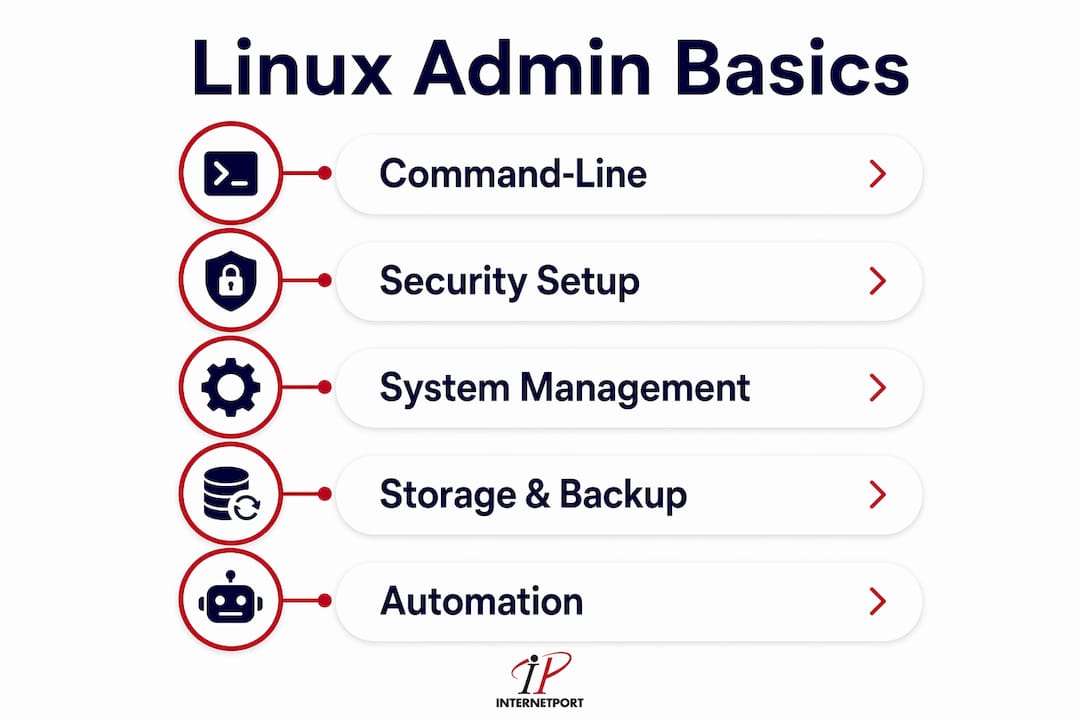
Linux server administration is defined as the practice of configuring, securing, monitoring, and maintaining Linux-based servers to keep systems reliable and available. The industry term for this discipline is Linux system administration, and it covers everything from basic linux commands to full linux server configuration in production environments. Mastering linux server administration basics means understanding five core pillars: the Filesystem Hierarchy Standard (FHS), systemd for service management, SSH for remote access, firewall configuration, and proactive log monitoring. This guide delivers the foundational knowledge IT professionals and aspiring system administrators need to manage Linux servers with confidence in 2026.
What are the essential command-line tools every admin must know?
Proficiency in at least 20 foundational Linux commands is the minimum baseline for daily sysadmin work. Commands fall into four categories: navigation, file operations, search, and system diagnostics. Knowing which category a problem belongs to cuts your troubleshooting time in half.
Navigation and file operations form the daily foundation:
ls -lalists all files with permissions and ownership detailscd,pwdmove you through the directory tree and confirm your locationcp,mv,rmhandle file copying, moving, and deletionchmodandchownset file permissions and ownershipgrepandfindsearch file contents and locate files by name, type, or modification date
System diagnostics tell you what the server is actually doing:
ps auxshows all running processes with CPU and memory usagetoporhtopgive a live, updating view of resource consumptiondf -hreports disk usage in human-readable formattail -f /var/log/syslogstreams live log output for real-time troubleshooting
The Filesystem Hierarchy Standard defines where everything lives on a Linux system. /etc holds configuration files. /var/log stores system and application logs. /home contains user data. /tmp holds temporary files that clear on reboot. Knowing this layout means you never waste time hunting for a config file.
Linux treats hardware and resources as files, and this is the single most important concept for new administrators to internalize. Devices, processes, and network sockets all appear as files in directories like /dev and /proc. Once you understand that principle, debugging becomes a matter of reading the right file rather than guessing at system state.
File permissions follow the read/write/execute model applied to three groups: owner, group, and others. Running chmod 750 script.sh gives the owner full access, the group read and execute access, and blocks everyone else. Running chown deploy:www-data app/ assigns ownership to the deploy user and the www-data group. These two commands cover the majority of permission work on a production server.
Pro Tip: Run man <command> before searching the web. The manual page for any command shows every flag and option, with examples. Admins who use man daily build command fluency far faster than those who rely on copy-paste answers.
How to perform initial Linux server setup and security hardening?
Automated bots begin scanning new servers for SSH vulnerabilities immediately after provisioning. That fact makes the first 15 minutes on a new server the most critical window for security. A disciplined setup workflow closes the most common attack vectors before bots find them.
Follow this sequence on every new Linux server:
- Update all packages. Run
apt update && apt upgrade -yon Ubuntu ordnf update -yon Rocky Linux. Unpatched packages are the most common entry point for attackers. - Create a non-root sudo user. Run
adduser adminuserthenusermod -aG sudo adminuser. Never log in as root for everyday tasks. Root errors are irreversible and leave no audit trail. - Generate and copy SSH keys. On your local machine, run
ssh-keygen -t ed25519. Copy the public key to the server withssh-copy-id adminuser@server-ip. - Disable password authentication and root login. Edit
/etc/ssh/sshd_configand setPasswordAuthentication noandPermitRootLogin no. Restart SSH withsystemctl restart sshd. - Set hostname and timezone. Run
hostnamectl set-hostname yourserverandtimedatectl set-timezone America/New_York. Accurate timestamps matter for log correlation. - Configure a firewall with a default-deny policy. On Ubuntu, use UFW:
ufw default deny incoming,ufw allow ssh,ufw enable. On Rocky Linux, use firewalld with equivalent zone rules. - Enable automatic security updates. Install
unattended-upgradeson Debian-based systems ordnf-automaticon RHEL-based systems. Configure them to apply security patches without manual intervention. - Verify your configuration. Test SSH login as your new sudo user before closing your current session.
Server administration is continuous defense. Securing a server once is not enough. Automated updates, regular audits, and firewall reviews must become routine habits, not one-time tasks.
Pro Tip: Keep your existing console session open while you test SSH key login and firewall rules. If you lock yourself out, the open session is your recovery path. Closing it prematurely is the most common beginner lockout mistake.

For a deeper look at the full server security workflow, Internetport's 2026 SMB guide covers each step with production-grade detail.
What system management skills are vital for maintaining Linux servers?
Systemd is the backbone of modern Linux distributions, including Ubuntu 24.04 LTS and Rocky Linux 9. Every service on the system starts, stops, and reports status through systemd. Mastering systemctl and journalctl is non-negotiable for any administrator managing a production server.
The core systemctl commands every admin uses daily:
systemctl status nginxchecks whether a service is running and shows recent log linessystemctl start nginxandsystemctl stop nginxcontrol the service statesystemctl enable nginxconfigures the service to start automatically at bootsystemctl restart nginxapplies configuration changes by restarting the servicesystemctl list-units --type=serviceshows all active services on the system
Log monitoring with journalctl gives you direct access to systemd's centralized log store. Running journalctl -u nginx --since "1 hour ago" pulls the last hour of nginx logs. Running journalctl -f streams all system logs live, similar to tail -f but across every service at once.
Network diagnostics are the other half of daily troubleshooting. The table below maps the most common network problems to the right diagnostic tool:
| Problem | Tool | Command example |
|---|---|---|
| Check open ports | ss | ss -tlnp |
| View routing table | ip | ip route show |
| Test connectivity | ping | ping 8.8.8.8 |
| Trace packet path | traceroute | traceroute google.com |
| DNS resolution | dig | dig example.com |
Internetport's network diagnostic tools page explains how ss, ip, and related utilities fit into a real troubleshooting workflow. Process management rounds out the skill set. Sending kill -9 <PID> terminates a frozen process immediately. Running nice -n 10 ./script.sh lowers a process's CPU priority so it does not starve other services. Understanding the relationship between the kernel, systemd, and individual services means you know where to look when something breaks at each layer.
For a complete reference on monitoring server performance, the Internetport sysadmin guide covers both real-time and historical analysis techniques.
How do Linux administrators manage storage, backups, and automate tasks?
Storage management on Linux production servers centers on the Logical Volume Manager (LVM). LVM sits between the physical disk and the filesystem, letting you resize volumes without downtime. The practical benefit is that you can add disk space to a running /var partition without rebooting or reformatting. That capability alone justifies learning LVM before you need it in a crisis.
Key storage and automation practices every admin must have in place:
- Verify backup coverage. Many cloud providers do not back up OS or critical directories by default. Confirm exactly what your provider backs up, and implement your own off-site backups for anything not covered. Assuming backups exist without verifying them is one of the most expensive mistakes in system administration.
- Automate routine tasks with cron. A cron job like
0 2 * * * /usr/local/bin/backup.shruns a backup script at 2:00 AM every day. Cron handles log rotation, database dumps, certificate renewals, and any task that needs to run on a schedule. - Match your package manager to your distribution. Ubuntu and Debian use
apt. Rocky Linux, AlmaLinux, and RHEL-based systems usednf. Mixing commands between distributions is a common source of errors for admins switching between environments. - Use SELinux or AppArmor for mandatory access control. SELinux ships with Rocky Linux and enforces strict policies on what processes can access which files. AppArmor is the default on Ubuntu. Both tools limit the damage a compromised service can cause by confining it to a defined set of allowed actions.
- Monitor disk usage proactively. A full
/varpartition stops logging and can crash services. Set up alerts when any partition exceeds 80% capacity.df -hgives a snapshot; tools likelogrotateprevent logs from filling disks silently.
Practical workflows for identifying bottlenecks matter more than memorizing niche commands. An admin who knows how to read df, check LVM status with lvdisplay, and trace a full disk to its source file is more effective than one who has memorized 200 commands but cannot diagnose a production outage. For LVM and container storage best practices, Internetport's LXC hosting guide covers real-world volume management scenarios.
Key Takeaways
Mastering Linux server administration basics requires command-line fluency, a security-first setup workflow, systemd proficiency, and verified backup coverage working together from day one.
| Point | Details |
|---|---|
| Command-line fluency is foundational | Learn navigation, file operations, search, and diagnostic commands before anything else. |
| First 15 minutes define security posture | Set SSH keys, disable root login, and enable a firewall immediately after provisioning. |
| Systemd controls everything | Use systemctl and journalctl daily to manage services and read logs on modern Linux distros. |
| Backups require active verification | Never assume your provider backs up critical directories. Confirm coverage and add off-site redundancy. |
| Automation reduces human error | Use cron jobs for routine tasks and enable automatic security updates on every production server. |
What I've learned after years of watching admins get Linux wrong
The biggest mistake I see consistently is treating Linux server administration as a memorization exercise. Admins spend weeks drilling command syntax and then freeze when a production server goes down because they never practiced diagnosing a real problem under pressure. The skill that actually matters is knowing where to look, not what to type from memory.
The second pattern I see is a security setup done once and then forgotten. Admins harden a server on day one, then spend the next two years adding services, opening ports, and never auditing what they changed. Six months in, the firewall has exceptions nobody remembers adding. The fix is simple: schedule a monthly review of ufw status verbose or firewall-cmd --list-all and treat it like a bill you have to pay.
Building a home lab changed how I think about Linux administration more than any certification did. Spin up two or three virtual machines, break things deliberately, and practice recovery. You learn more from a failed rm -rf in a lab than from reading ten tutorials about it. The VPS security best practices guide from Internetport is worth running through on a lab server before applying anything to production.
Certifications like the Linux Professional Institute's LPIC-1 or the Red Hat Certified System Administrator (RHCSA) do accelerate career growth. They force structured learning across topics you might otherwise skip. But they work best when you already have hands-on hours behind you. Get the lab time first, then pursue the credential.
— Peter
A solid Linux environment starts with the right infrastructure
Practicing Linux server administration basics requires a real server environment, not just a local virtual machine. Internetport offers cloud VPS plans and dedicated servers that give you full root access to a Linux environment within minutes of provisioning.
Internetport's infrastructure runs from data centers in Sweden and internationally, with PCI DSS compliance and private networking options built in. That means you can practice SSH hardening, firewall configuration, and systemd service management on a real server without worrying about the underlying hardware. For teams ready to move from practice to production, Internetport's dedicated server options provide the isolated resources and performance that production Linux workloads demand.
FAQ
What are the first commands to learn for Linux server administration?
Start with ls, cd, cp, mv, rm, grep, find, ps, df, and top. These foundational commands cover navigation, file management, search, and system diagnostics, which are the four tasks that make up most daily sysadmin work.
How do I secure a new Linux server quickly?
Update packages, create a non-root sudo user, set up SSH key authentication, disable password and root login, and enable a firewall with a default-deny policy. This process takes about 10–15 minutes and closes the most common attack vectors before automated bots find them.
What is systemd and why does it matter for Linux admins?
Systemd is the init system and service manager used by Ubuntu 24.04 LTS, Rocky Linux 9, and most modern Linux distributions. It controls how services start, stop, and log output, making systemctl and journalctl the two most important management tools on any modern Linux server.
Do cloud providers back up my Linux server automatically?
Most cloud providers do not back up OS directories or critical application data by default. Verify your provider's backup policy explicitly, and implement your own off-site backups for any data not covered by the provider's default plan.
What is the difference between UFW and firewalld?
UFW is the default firewall management tool on Ubuntu and Debian-based systems, designed for simplicity. Firewalld is the default on Rocky Linux and RHEL-based systems, using zone-based rules for more granular control. Both enforce a default-deny policy when configured correctly, and both are valid choices depending on your distribution.